ROI Painter Panel and Tool Settings
The ROI Painter tools, which can be used for manual segmentation tasks and for editing regions of interest and multi-ROIs in 2D and 3D views, are available on the ROI Painter panel, shown below.
ROI Painter tools

A. Brush size B. Brush tools C. Point & Click tools D. Smart Grid and Snap tools E. Path tool F. Region tools
Brush size… Lets you set the diameter of the brush for the Brush, Point & Click, Smart Grid, and Snap tools (see ROI Painter Tool Settings).
Brush tools… You use the available Brush tools — Full, Adaptive Gaussian, and Local Otsu — to paint selections on 2D views in single slice or multi-slice mode and to label visual voxels in 3D views (see Painting with the Brush Tools).
Point & Click tools… You use the Point & Click tool to grow regions of interest based on the standard deviation of intensity values within the selected dataset and their connectivity (see Painting with the Point & Click Tools).
Smart Grid and Snap tools… You use the Smart Grid tool to fill boundary mask regions defined by an overlaid grid on 2D views in 'Single slice' mode (see Painting with the Smart Grid Tool), while you use the Snap tool by simply dragging on a feature of interest (see Painting with the Snap Tool). The contour line that snaps to the gradient that defines the edges of the region will be filled automatically when you release the mouse.
Path tool… You use the Path tool to create regions of interest that consist of single lines set at a specific diameter (see Painting with the Path Tool).
Region tools… You use the Region tools to label pixels within regular and irregular shaped regions on 2D views in Single slice mode and in 3D views (see Painting with the Region Tools).
 ROI Painter Tool Settings
The behavior of an ROI Painter tool is determined by its selected mode and settings.
| Description | |
|---|---|
|
Brush size |
Lets you set the diameter of the brush for the Brush, Point & Click, Smart Grid, and Snap tools.
Reset… Click the Reset Note You can also use the scroll wheel on your mouse to increase or decrease the brush size (see Configured Actions for the ROI Painter Tools for information about the keyboard/mouse settings). |
|
Add |
You add labeled voxels to an ROI or multi-ROI in 'Add mode'.
|
|
Remove |
You remove labeled voxels from an ROI or multi-ROI in 'Remove mode'.
Note In cases in which a background is set for a multi-ROI, labeled voxels that are removed will be added automatically to the background class (see Setting a Class as the Background). |
|
Options for the 2D view tools |
|
|
Single slice |
In 'Single slice' mode, you can add and remove on the current slice only. |
|
Multi-slice1 |
In 'Multi-slice' mode, you can add and remove on multiple slices that extend through the volume according to the selected brush size. |
|
Define range |
You can select this option on the ROI Tools panel to define a domain of intensity on 2D views, which is highlighted in red by default. Any voxel with a value outside the defined range will not be selectable with any of the ROI Painter tools (see Thresholding). |
|
Options 3D view tools |
|
|
Object drop-down menu |
Lets you select the object — a Dataset or Region of Interest — that you want to work on when you use the ROI Painter tools in 3D views.
Image… Lets you work on all visible voxels of the selected image data. You can adjust window leveling to help isolate the features that you need to label (see Window Leveling). Region of interest… Lets you work on the labeled voxels of the selected region of interest. In this case, you will only be able to use the Region tools in Remove mode. |
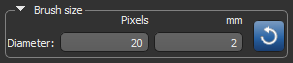
 button to set the diameter of the brush back to its default setting.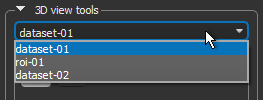
1 Applicable to the Brush, Point & Click, and Path tools.
Configured Actions for the ROI Painter Tools
A number of configured actions and keyboard shortcuts are available for using the ROI Painter tools. The default settings for each ROI Painter tool are listed below.
Configured Actions for the Brush Tool
|
Action |
Key |
Mouse |
|---|---|---|
|
Add with circular brush |
Left Ctrl |
Left mouse |
|
Remove with circular brush |
Left Shift |
Left mouse |
|
Add with rectangular brush |
Left Ctrl |
Left mouse |
|
Remove with rectangular brush |
Left Shift |
Left mouse |
|
Increase circular brush size (in ROI Painter) |
- |
Mouse wheel up |
|
Decrease circular brush size (in ROI Painter) |
- |
Mouse wheel down |
|
Increase rectangular brush size (in ROI Painter) |
- |
Mouse wheel up |
|
Decrease rectangular brush size (in ROI Painter) |
- |
Mouse wheel down |
|
Switch to circular brush add |
Left Ctrl |
- |
|
Switch to circular brush remove |
Left Shift |
- |
|
Switch to rectangular brush add |
Left Ctrl |
- |
|
Switch to rectangular brush remove |
Left Shift |
- |
Configured Actions for the Smart Grid Tool
|
Action |
Key |
Mouse |
|---|---|---|
|
Add by Smart Grid segmentation |
Left Ctrl |
Left mouse |
|
Remove by Smart Grid segmentation |
Left Shift |
Left mouse |
|
Increase brush size in Smart Grid segmentation |
- |
Mouse wheel up |
|
Decrease brush size in Smart Grid segmentation |
- |
Mouse wheel down |
|
Switch to add by Smart Grid segmentation mode |
Left Ctrl |
- |
|
Switch to remove by Smart Grid segmentation mode |
Left Shift |
- |
Configured Actions for the Path Tool
|
Action |
Key |
Mouse |
|---|---|---|
|
Add with Path brush |
Left Ctrl |
Left mouse |
|
Switch to Path brush add |
Left Ctrl |
- |
Configured Actions for the Snap Tool
|
Action |
Key |
Mouse |
|---|---|---|
|
Add with Snap brush |
Left Ctrl |
Left mouse |
|
Remove with Snap brush |
Left Shift |
Left mouse |
|
Increase circular Snap brush size (in ROI Painter) |
- |
Mouse wheel up |
|
Decrease circular Snap brush size (in ROI Painter) |
- |
Mouse wheel down |
|
Switch to Snap brush add |
Left Ctrl |
- |
|
Switch to Snap brush remove |
Left Shift |
- |
Configured Actions for the Point & Click Tools
The configured actions for the Point & Click, Point & Click Outline, and Point & Click Fill tools are listed below.
Configured Actions for the Point & Click Tool
|
Action |
Key |
Mouse |
|---|---|---|
|
Activate Point & Click add |
Left Ctrl |
|
|
Activate Point & Click remove |
Left Shift |
|
|
Add to Point & Click |
Left Ctrl |
Left mouse |
|
Decrease Point & Click brush size in Add mode (in ROI Painter) |
Left Ctrl |
Mouse wheel down |
|
Decrease Point & Click brush size in Remove mode (in ROI Painter) |
Left Shift |
Mouse wheel down |
|
Increase Point & Click brush size in Add mode (in ROI Painter) |
Left Ctrl |
Mouse wheel up |
|
Increase Point & Click brush size in Remove mode (in ROI Painter) |
Left Shift |
Mouse wheel up |
|
Remove from Point & Click |
Left Shift |
Left mouse |
|
Switch to Point & Click mode |
- |
- |
Configured Actions for the Point & Click Outline Tool
|
Action |
Key |
Mouse |
|---|---|---|
|
Activate Point & Click Outline add |
Left Ctrl |
|
|
Activate Point & Click Outline remove |
Left Shift |
|
|
Add to Point & Click Outline |
Left Ctrl |
Left mouse |
|
Decrease Point & Click Outline brush size in Add mode (in ROI Painter) |
Left Ctrl |
Mouse wheel down |
|
Decrease Point & Click Outline brush size in Remove mode (in ROI Painter) |
Left Shift |
Mouse wheel down |
|
Increase Point & Click Outline brush size in Add mode (in ROI Painter) |
Left Ctrl |
Mouse wheel up |
|
Increase Point & Click Outline brush size in Remove mode (in ROI Painter) |
Left Shift |
Mouse wheel up |
|
Remove from Point & Click Outline |
Left Shift |
Left mouse |
|
Switch to Point & Click Outline mode |
- |
- |
Configured Actions for the Point & Click Fill Tool
|
Action |
Key |
Mouse |
|---|---|---|
|
Activate Point & Click Fill add |
Left Ctrl |
|
|
Add to Point & Click Fill |
Left Ctrl |
Left mouse |
|
Decrease Point & Click Fill brush size in Add mode (in ROI Painter) |
Left Ctrl |
Mouse wheel down |
|
Increase Point & Click Outline brush size in Add mode (in ROI Painter) |
Left Ctrl |
Mouse wheel up |
|
Point & Click Fill in any mode |
F |
Left mouse |
|
Switch to Point & Click Fill mode |
- |
- |
Configured Actions for the Region Tools
|
Action |
Key |
Mouse |
|---|---|---|
|
Add to ellipse (in ROI Painter) |
Left Ctrl |
Left mouse |
|
Remove from ellipse (in ROI Painter) |
Left Shift |
Left mouse |
|
Add to freehand (in ROI Painter) |
Left Ctrl |
Left mouse |
|
Remove from freehand (in ROI Painter) |
Left Shift |
Left mouse |
|
Add to polygon (in ROI Painter) |
Left Ctrl |
Left mouse |
|
Remove from polygon (in ROI Painter) |
Left Shift |
Left mouse |
|
Add to rectangle (in ROI Painter) |
Left Ctrl |
Left mouse |
|
Remove from rectangle (in ROI Painter) |
Left Shift |
Left mouse |
|
Increase circular brush size (in ROI Painter) |
|
Mouse wheel up |
|
Decrease circular brush size (in ROI Painter) |
|
Mouse wheel down |
|
Increase point and click brush size (in ROI Painter) |
|
Mouse wheel up |
|
Decrease point and click brush size (in ROI Painter) |
|
Mouse wheel down |
|
Increase point and click brush size (in ROI Painter) |
|
Mouse wheel up |
|
Decrease point and click brush size (in ROI Painter) |
|
Mouse wheel down |
|
Increase rectangular brush size (in ROI Painter) |
|
Mouse wheel up |
|
Decrease rectangular brush size (in ROI Painter) |
|
Mouse wheel down |
|
Switch to add to ellipse mode (in ROI Painter) |
Left Ctrl |
|
|
Switch to remove from ellipse mode (in ROI Painter) |
Left Shift |
|
|
Switch to add to freehand mode (in ROI Painter) |
Left Ctrl |
|
|
Switch to remove from freehand mode (in ROI Painter) |
Left Shift |
|
|
Switch to add to polygon mode (in ROI Painter) |
Left Ctrl |
|
|
Switch to remove from polygon mode (in ROI Painter) |
Left Shift |
|
|
Switch to add to rectangle mode (in ROI Painter) |
Left Ctrl |
|
|
Switch to remove from rectangle mode (in ROI Painter) |
Left Shift |
|